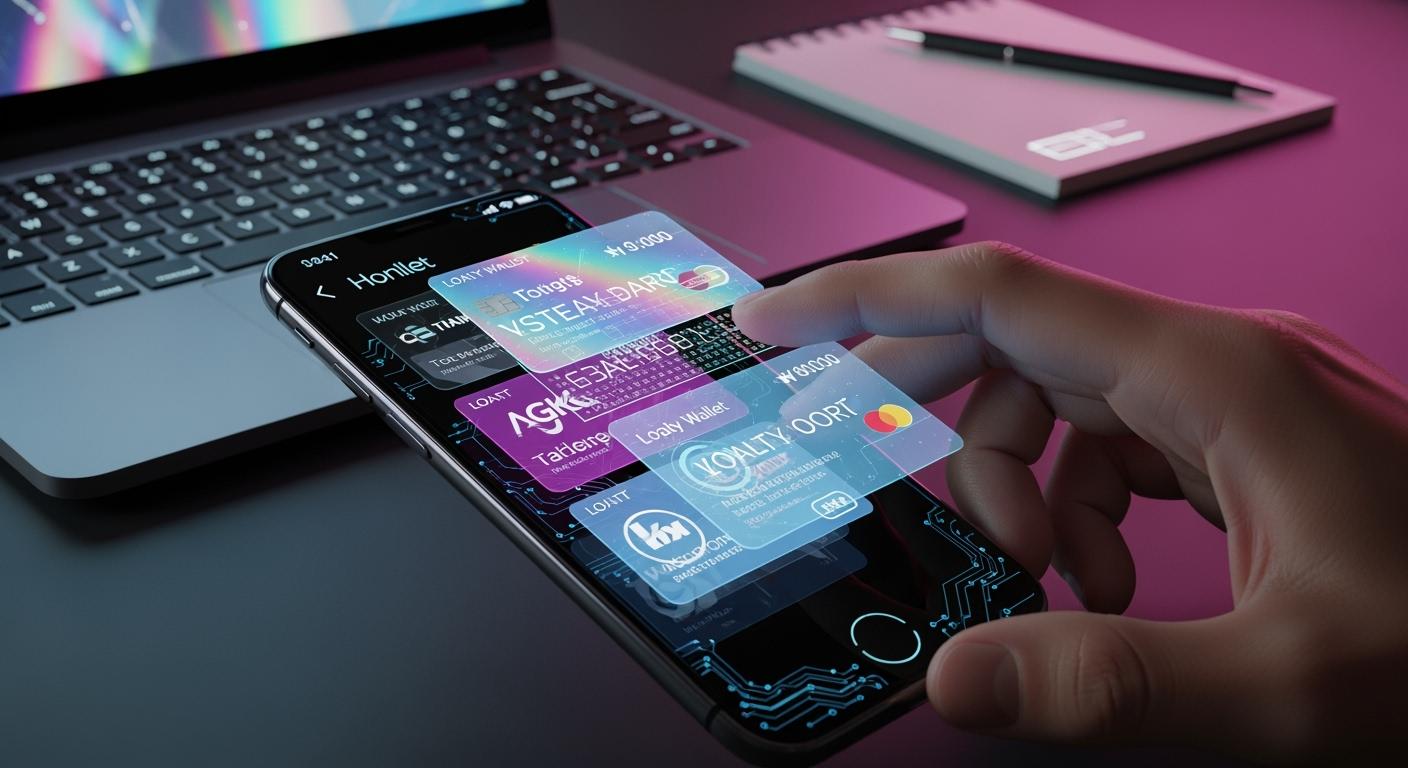
Google Wallet lets you keep a business's loyalty card right on your Android phone as a digital rewards pass. Add a participating business's loyalty card, open it at checkout and show its QR code or barcode to staff to collect stamps, earn points or use an available reward. The business sets the earning and redemption rules; saving the card is not the same as earning a reward.
This guide covers how to add loyalty cards to Google Wallet, use them in store and check missing rewards. Running a café, salon or gym? See how to set up a Google Wallet rewards pass for the business-owner steps.
Key Takeaways
- Add a loyalty card through the business's sign-up link or Google Wallet's Loyalty option for supported programs.
- Open the correct loyalty card at checkout. The business decides how stamps, points and reward redemption work.
- Loyally cards use QR-code or barcode scanning, not NFC tap. A contactless payment alone does not credit a Loyally card.
Google Wallet rewards pass: how earning and redemption work
Google Wallet stores the loyalty card; the business runs the rewards program. A café might offer a drink after a set number of stamps, while a salon might award points. Check each card's reward threshold, expiry and participating locations rather than assuming every program works the same way.
To use a Loyally rewards pass, open it in Google Wallet and let staff scan its QR code or PDF417 barcode with the scanner app or web scanner. Staff can add stamps or points, or redeem an eligible reward. Holding the phone near an NFC payment reader does not scan a Loyally card.
Benefits of Google Wallet Loyalty Cards
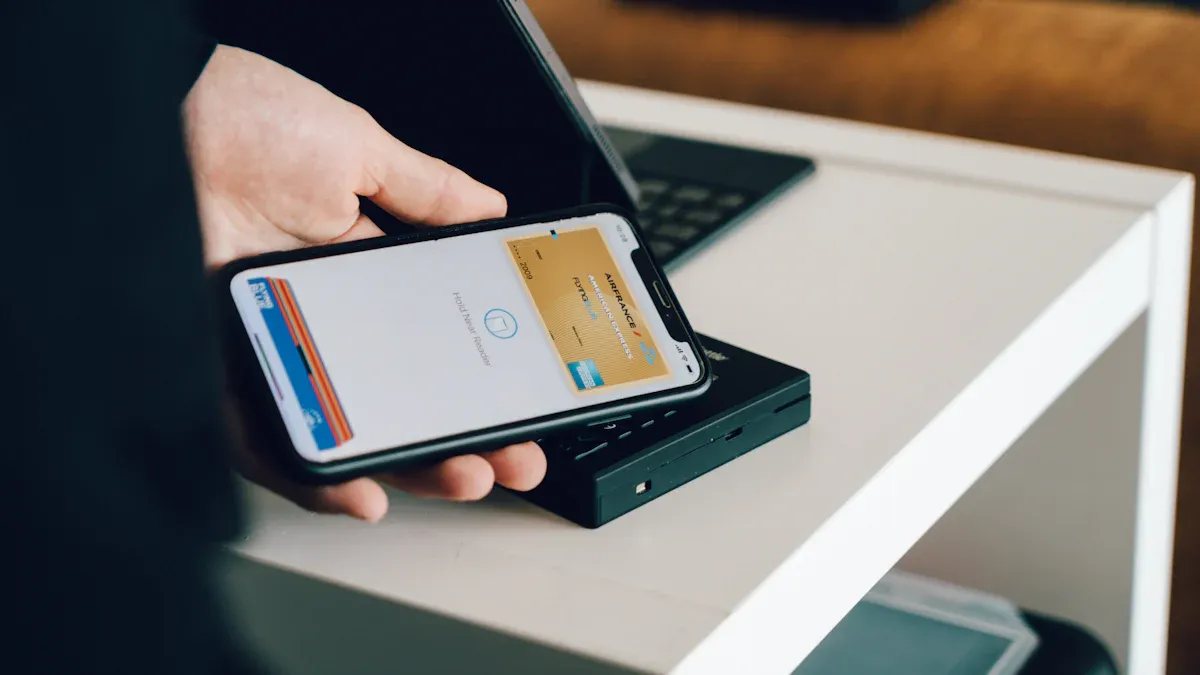
Using digital loyalty cards has many benefits compared to regular physical cards. Here are some important advantages:
Advantage | Description |
|---|---|
Reduced Environmental Impact | Digital loyalty cards cut down on using physical materials, like plastic cards. |
Easier Distribution | They can be sent quickly through email or web forms, saving time and money. |
Clutter-Free Convenience | Customers can keep them on their phones, so they don’t need to carry physical cards. |
With Google Wallet loyalty cards, you can keep participating programs close to hand:
- Open the business's card on your phone instead of searching for a paper or plastic card.
- Check the stamps, points or offers shown on that card, where the program supports them.
- Read the business's terms before redeeming a reward, including any expiry or purchase requirements.
The card can make a repeat visit easier, but it does not guarantee a discount or earn rewards by itself. Show it to staff before the transaction is finished so they can apply the business's loyalty process.
Use the business's own enrollment link when adding a new card. For the supported Wallet steps, see Google's guide to adding and using loyalty cards.
How to Add Loyalty Cards to Google Wallet
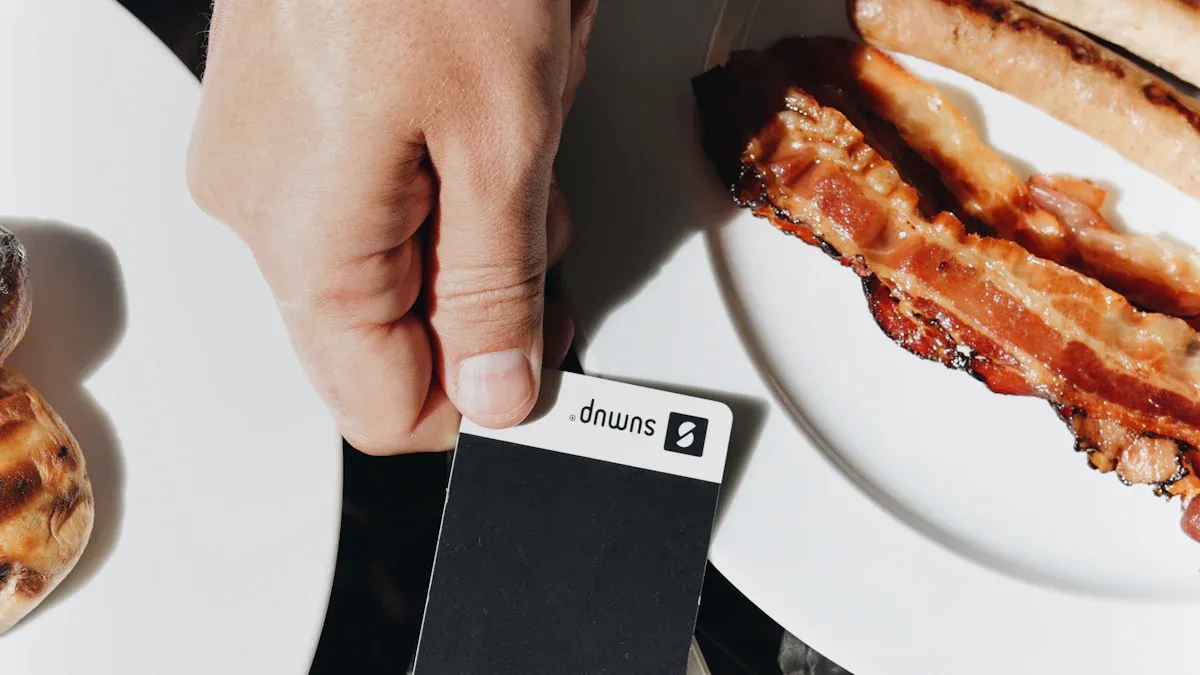
There are two ways to add loyalty cards to Google Wallet: the business's own Add to Google Wallet link, or the Loyalty option inside Wallet for supported programs. Start with the business's link when one is available.
Add a loyalty card from the business's link or QR code
This is the most common way to add a loyalty card to Google Wallet when a local business shares it with you:
- Open the business's enrollment link, or scan its sign-up QR code with your phone's camera.
- Complete any sign-up form the business presents, then choose Add to Google Wallet.
- Follow Google's prompts and confirm that you want to save the card.
- Open Google Wallet and find the saved card. Check the business name, reward terms and QR code or barcode before your next visit.
Customers do not need a separate Loyally loyalty app to save or show their loyalty card. They do need Google Wallet installed to use that wallet option; Loyally also supports Apple Wallet and a web app.
Add an existing loyalty card through Google Wallet
For programs already supported by Wallet's built-in loyalty search:
- Open the Google Wallet app on your Android phone.
- Tap Add to Wallet, then Loyalty.
- Find and select the business or loyalty program.
- Follow the on-screen instructions to scan your existing card, enter membership details or sign up if that option is offered.
- Finish the prompts, then open the saved card to check the details.
If the business does not appear in the search results, ask it for a Google Wallet enrollment link or another supported way to add its loyalty card. A scanned image of a physical card is not a promise that its points balance will update or that every store can accept it.
Tip: When scanning a physical card during setup, use good lighting and keep the barcode in focus. At checkout, open the saved digital card so staff can scan the code on your screen.
Troubleshooting Common Issues
If your loyalty card in Google Wallet is not working as expected, start with the problem you can see rather than adding a second card:
- Business not listed in Wallet: Ask the business for its own sign-up link. Wallet's loyalty search does not list every business that can issue a card.
- Card will not scan at checkout: Open the correct card, increase screen brightness and show the full QR code or barcode. For a Loyally card, staff should use the scanner app or web scanner, not an NFC payment reader.
- Stamps or points are missing: Check that you presented the right card for that business. Ask staff to verify the visit or purchase and whether it qualifies under the program's rules. Google Wallet does not decide which purchases earn a reward.
- Balance looks out of date: Reopen the card with an internet connection and ask the business to confirm the recorded balance. Do not assume that deleting and re-adding the card will recover a missing visit.
- Reward cannot be redeemed: Check its threshold, expiry and location restrictions with the business before placing an order. A saved loyalty card is not proof that a reward is currently available.
Tips for Using Digital Loyalty Cards
A few habits make digital loyalty cards easier to use:
- Present the card on each eligible visit: Open it before reaching the counter and ask staff to scan it. Do not assume paying with a saved payment card also credits your loyalty card.
- Check before redeeming: Read the business's offer terms and confirm that the reward is ready. Keep your receipt if you need the business to investigate missing points or stamps.
To keep your digital loyalty cards neat in Google Wallet, try these tips:
Use the 'Add to Wallet' feature to easily add different cards, like store loyalty cards.
Organize your cards to avoid mess and make them easy to find.
Archive old loyalty cards instead of deleting them. This way, you can still access them if needed.
Spend a few minutes each month to check and clean up your digital wallet. Remove cards you don’t use anymore to avoid delays when checking out.
Set up rewards passes for your business
Loyally helps cafés, salons, barbers, restaurants and gyms create digital rewards passes for Google Wallet, Apple Wallet or a web app. Staff scan customers' passes to add stamps or manage rewards. All eight card formats and unlimited customers are included on every plan, so you can choose a stamp, reward or membership card to fit your business.
Start with a clear earning rule and a reward staff can explain at the counter. Test adding a rewards pass, scanning it and redeeming the reward before inviting customers. See how Loyally works or compare plans: every plan has a 14-day free trial, no credit card required, and you can cancel anytime.
FAQ
What is a rewards pass in Google Wallet?
A rewards pass in Google Wallet is a digital card saved to your Android phone that tracks stamps, points or offers from a business. The business sets how you earn and redeem rewards; check its terms, expiry and participating locations. You open the rewards pass at checkout and let staff scan it.
How do I redeem rewards on a Google Wallet pass?
Open the business's rewards pass and show it to staff before completing your purchase. For a Loyally card, staff scan the QR code or barcode and redeem an eligible reward. A saved rewards pass alone does not mean you have reached the reward threshold.
Why are my Google Wallet rewards or points missing?
Check that you used the right rewards pass and that the visit qualified under the business's rules. Ask the business to verify the transaction and recorded balance. Deleting and re-adding a pass does not establish that a missing visit was credited.
Can I add any loyalty card to Google Wallet?
Use a participating business's Google Wallet sign-up link, or find a supported program under Add to Wallet → Loyalty. If the business is not listed, ask for its own enrollment link. Not every physical loyalty card can be added to Google Wallet as a live digital pass that updates automatically. The business needs to support the Google Wallet format for balances and rewards to sync.
Can I tap a Loyally card on an NFC reader?
No. Loyally cards use a QR code or PDF417 barcode scanned with the scanner app or web scanner. Apple VAS and Google Smart Tap readers cannot read them.
Ready to grow your business with loyal customers?
Sign up now and see how easy it is to turn first-time buyers into regulars.